Flexalon Scroller lets users scroll your content with a mouse wheel, trackpad, touch, mouse drag, or scrollbars. It works for both Unity UI and 3D content, and can scroll horizontally, vertically, and in depth.
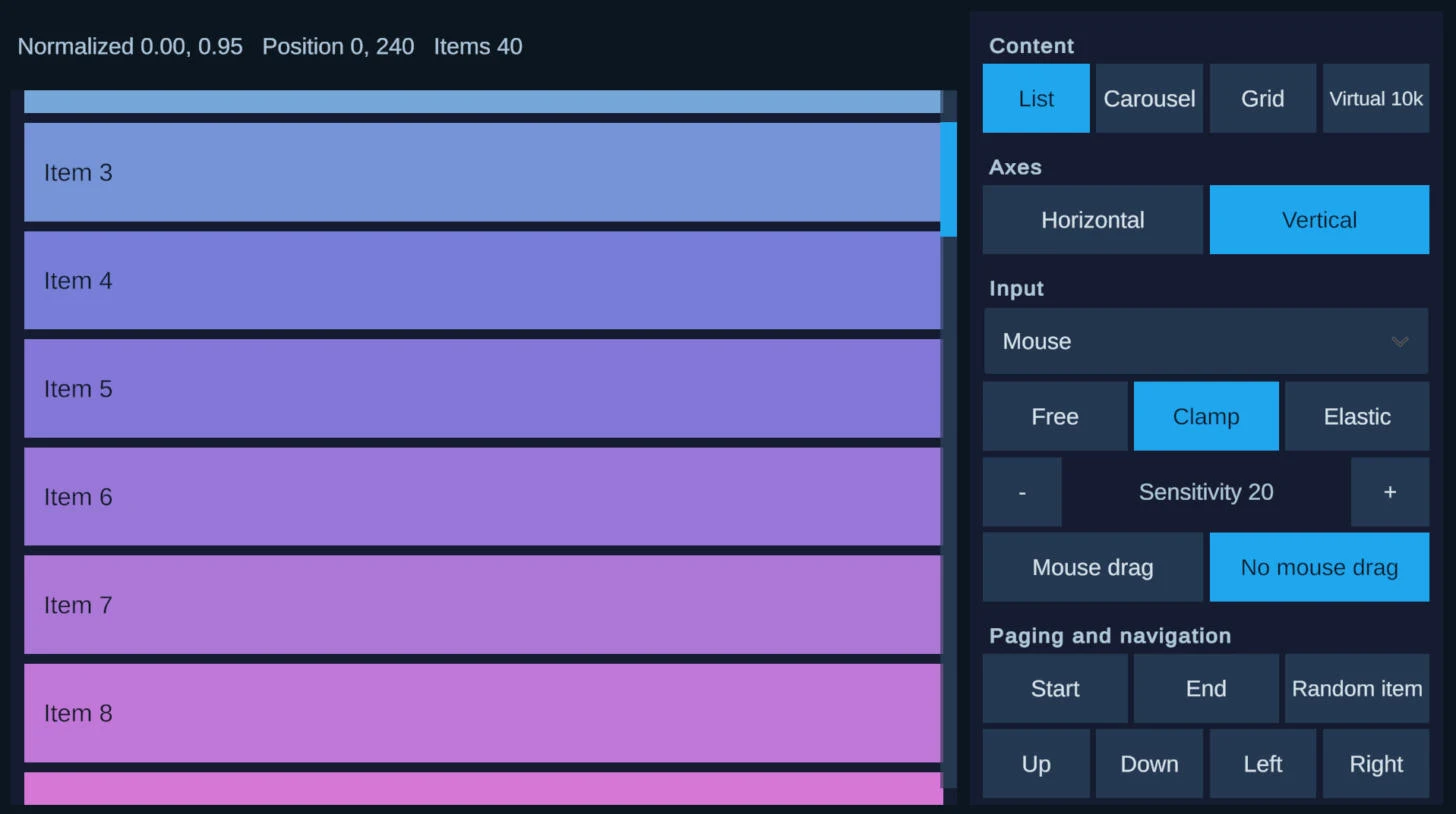
Create a scroller
Select GameObject > Flexalon > 2D Scroller for Unity UI, or 3D Scroller for 3D content. This creates a viewport, a content object to put your items in, and anything else the scene needs to receive input, such as a Canvas and EventSystem. The 2D Scroller is set up like Unity's Scroll View, with a masked viewport and scrollbars that hide when there's nothing to scroll.
For long lists, use Virtualized 2D Scroll List or Virtualized 3D Scroll List instead. See Virtualizer.
Set up a scroller yourself
- Create a viewport GameObject with a Flexalon Object sized to the visible area.
- Create a content GameObject under it, with a layout and your items.
- Add Flexalon Scroller to the viewport. Assign Viewport and Content, and turn on the axes you want to scroll. The menu items put the scroller on a parent of the viewport instead, so the scrollbars can sit outside the masked area. Either way works.
- Make sure the viewport can receive pointer events: the scene needs an EventSystem, and 3D content needs a collider on the viewport and a Physics Raycaster on the camera.
- To hide content outside the viewport, use a Unity UI Mask, or a Flexalon Viewport for 3D content.
Flexalon Scroller Options
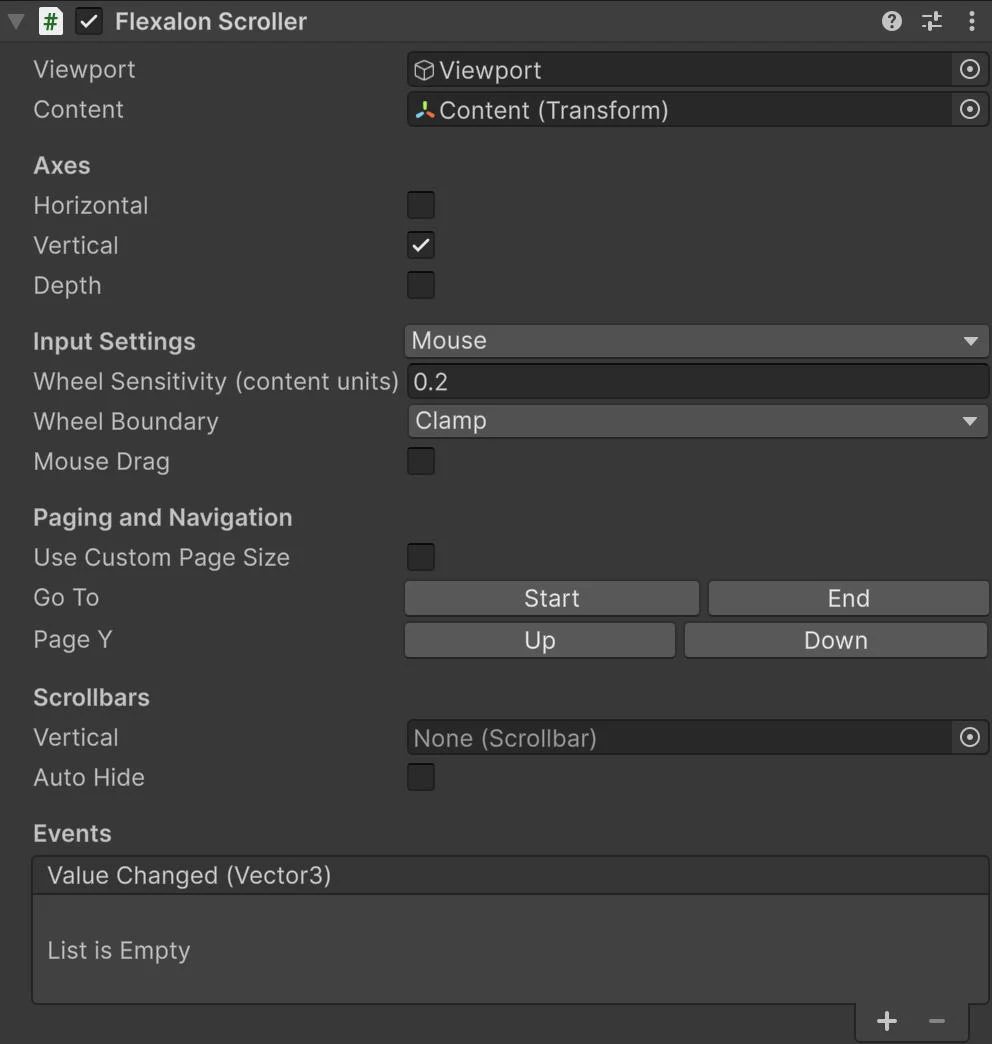
The inspector shows the settings for one kind of input at a time. Choose Mouse, Touch, or Programmatic from Input Settings.
| Viewport | The object whose Flexalon Object size is the visible area. |
| Content | The object that moves when you scroll. |
| Horizontal / Vertical / Depth | The axes the content can scroll on. |
| Wheel Sensitivity | How far one notch of the mouse wheel or trackpad scrolls the content. |
| Boundary | What happens at the end of the content. Clamp stops at the edge, Elastic lets the content stretch past the edge and spring back, and Unrestricted has no limit. Mouse, touch, and programmatic scrolling each have their own setting. |
| Mouse Drag | Lets users drag the content with the left mouse button. Dragging uses the Touch settings. |
| Inertia | Keeps the content moving after a touch or drag is released, slowing down over time. |
| Drag Plane | For 3D content, the plane that touch and mouse dragging move along. |
| Use Custom Page Size | By default, a page is the size of the viewport. Turn this on to set your own Page Size. |
| Scrollbars | Optional Unity UI scrollbars for each axis. Auto Hide hides a scrollbar when the content fits in the viewport. |
| Value Changed | An event that's called whenever the content moves. |
The Paging and Navigation section has buttons to jump to the start, end, a page, or an item while you set up your scene.
If the content is smaller than the viewport, it lines up with the viewport's top-left corner.
Scroll from a script
Use these methods to build buttons like "Back to top" or "Next page", or to bring a selected item into view:
scroller.ScrollToObject(selectedItem);
scroller.ScrollToNormalized(new Vector3(0, 0.5f, 0));
scroller.NextPage(Direction.NegativeY);
scroller.ScrollToItem(25, new Vector3(0, 1, 0));
scroller.NextItem(1, new Vector3(0, 1, 0));
They scroll smoothly unless you pass smooth: false. The last argument for items lines the item up with the viewport: 0 lines up the left or bottom edges, 0.5 centers it, and 1 lines up the right or top edges. CurrentPage and PageCount are useful for page indicators.
The ScrollerUISample scene shows mouse dragging, paging, and item navigation.