Flexalon Virtualizer lets you show lists and grids with thousands of items without creating thousands of GameObjects. It lays out every item, but only creates GameObjects for the ones near the viewport. As you scroll, items that leave the view are reused for the ones coming in.
Create a virtualized list
Select GameObject > Flexalon > Virtualized 2D Scroll List for Unity UI, or Virtualized 3D Scroll List for 3D content. This creates a viewport, a Scroller, and a Flexalon Virtualizer with a vertical Flexible Layout. Then:
- Create a prefab for one item, with a Flexalon Object on its root, and assign it to the virtualizer's Prefab.
- Write a script that gives the virtualizer your data and fills in each item. See Binding data below.
To set up a virtualizer yourself, add Flexalon Virtualizer to any GameObject and assign its Viewport, Layout, and Prefab. Leave the layout empty: the virtualizer creates its children.
Binding data
The virtualizer doesn't know what your items look like. You give it a list of data with SetData, and it calls your BindData function whenever an item comes into view, with the item's index, its data, and the GameObject that will show it. Your function fills in the GameObject from the data.
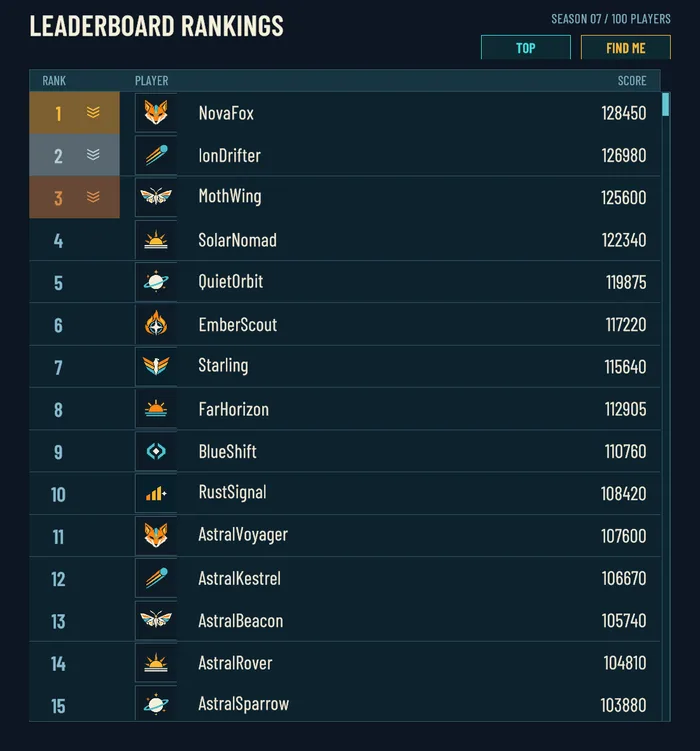
For example, here's a leaderboard. Each entry is a plain C# class, and the prefab has a small component that knows how to show one entry:
[System.Serializable]
public class PlayerScore
{
    public string Name;
    public int Score;
}

public class ScoreRow : MonoBehaviour
{
    public TMP_Text Rank;
    public TMP_Text Name;
    public TMP_Text Score;

    public void Show(int index, PlayerScore player)
    {
        Rank.text = (index + 1).ToString();
        Name.text = player.Name;
        Score.text = player.Score.ToString();
    }
}
Add a script to the scene that connects the two:
public class Leaderboard : MonoBehaviour
{
    public FlexalonVirtualizer Virtualizer;
    private List<PlayerScore> _scores;

    void Start()
    {
        _scores = LoadScores();
        Virtualizer.BindData = (index, data, item) =>
            item.GetComponent<ScoreRow>().Show(index, (PlayerScore)data);
        Virtualizer.SetData(_scores);
    }
}
Set BindData before calling SetData, so the first items are filled in. Your data can be any list or array.
Because items are reused, the GameObject you get may still show another entry. Bind Data should set everything that differs between items, like text, colors, icons, and toggles, and not only the things that are different from the prefab.
If an item starts something that must stop when it's reused, like a coroutine, an event subscription, or an image download, set UnbindData too. It's called with the same arguments when the item leaves the view.
Virtualizer.UnbindData = (index, data, item) =>
    item.GetComponent<ScoreRow>().StopAllCoroutines();
Items with different sizes
Every item starts with the Prefab's Flexalon Object settings. If items have different sizes, such as cards with different heights in a Masonry Layout, set the size of each item from its data with InitializeVirtualObject. This lets the virtualizer lay out items before their GameObjects exist.
Virtualizer.InitializeVirtualObject = (index, data, virtualObject) =>
    virtualObject.Height = ((Card)data).Height;
When the item comes into view, its GameObject takes its place, so give the GameObject's Flexalon Object the same size in Bind Data.
Virtualizer.BindData = (index, data, item) =>
    item.GetComponent<FlexalonObject>().Height = ((Card)data).Height;
If every item has the same size, turn on Uniform Items instead.
Flexalon Virtualizer Options
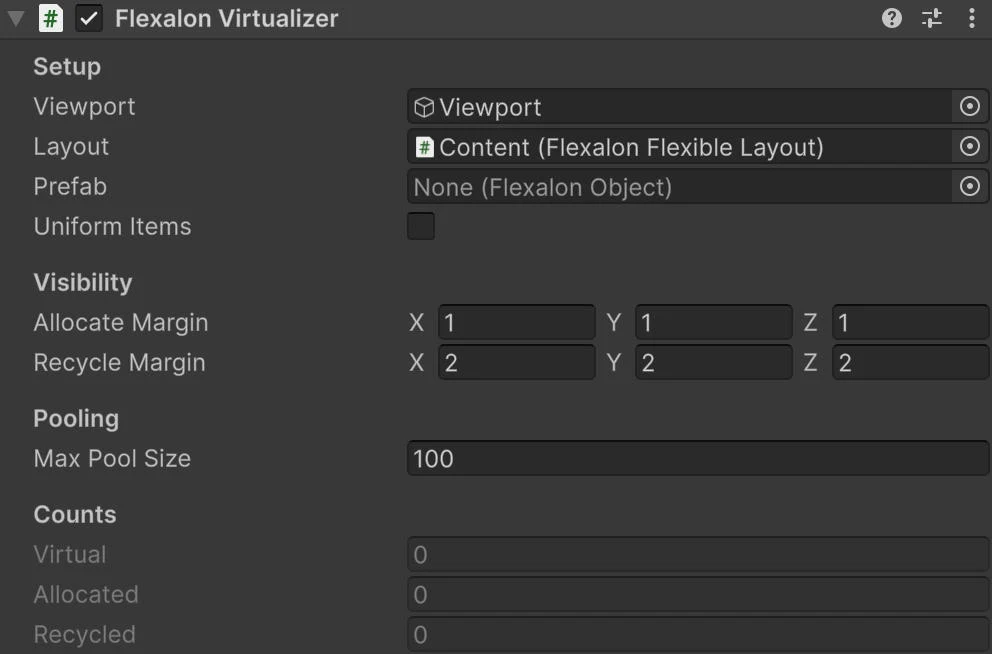
| Viewport | The object whose Flexalon Object size is the visible area. |
| Layout | The layout that holds the items. This is the content that scrolls. |
| Prefab | The item prefab. Its Flexalon Object settings are used to lay out every item, including the ones that haven't been created. |
| Uniform Items | Turn this on when every item has the same size and layout settings. Scrolling is faster because the list doesn't need to be laid out again when items are reused. |
| Allocate Margin | How far outside the viewport items are created, so they're ready before they scroll into view. |
| Recycle Margin | How far outside the viewport items stay before they're reused. Keep it larger than Allocate Margin. |
| Max Pool Size | How many unused items to keep for later. |
The Counts section shows how many items exist while the game is running.
Updating data
When you add, remove, or change items in your list, call NotifyDataAdded, NotifyDataRemoved, or NotifyDataChanged. To replace the whole list, call SetData again. The items on screen stay where they are, so you can keep adding to the end of a feed while the user scrolls.
Tips
- To hide 3D items outside the viewport, add Flexalon Clippable to the layout or the prefab. For Unity UI, use a Mask.
- In a virtualized Table Layout, each row is one item. Rows that aren't on screen can't be measured, so Content-sized columns can change width as you scroll. Use Fixed or Fill columns to keep them steady.
The SpaceVirtualScroll scene in Samples/SpaceAdventure has the leaderboard shown above. The ViewportVirtualizerSample and InfiniteMasonrySample scenes show virtualized 3D content. See the Virtualizer API for more ways to create and size items from code.