A Table Layout is like a Grid Layout, but each column, row, and layer can have its own size. A name column can grow to fit the longest name, while an icon column stays small and a description column fills the rest of the space. It works well for inventories, scoreboards, and settings screens.
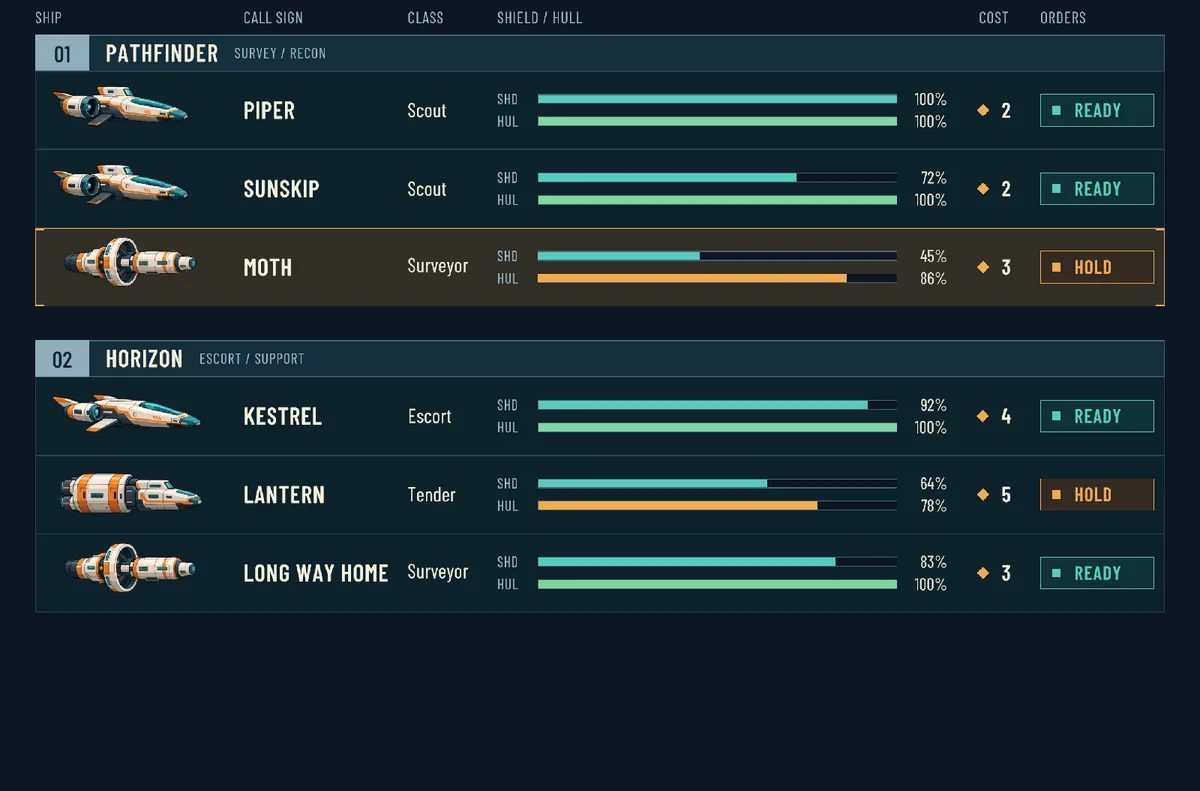
Set up a table
- Add Flexalon Table Layout to a parent and place your items beneath it.
- Set the column, row, and layer counts. Start with one layer for a 2D table.
- Choose sizing in Column, Row, and Layer Defaults. For a responsive table, give the parent a Fixed or Fill width and use Fill columns.
- Add Flexalon Cell to items that need a particular location or span. Other children are placed automatically.
Table Layout Options
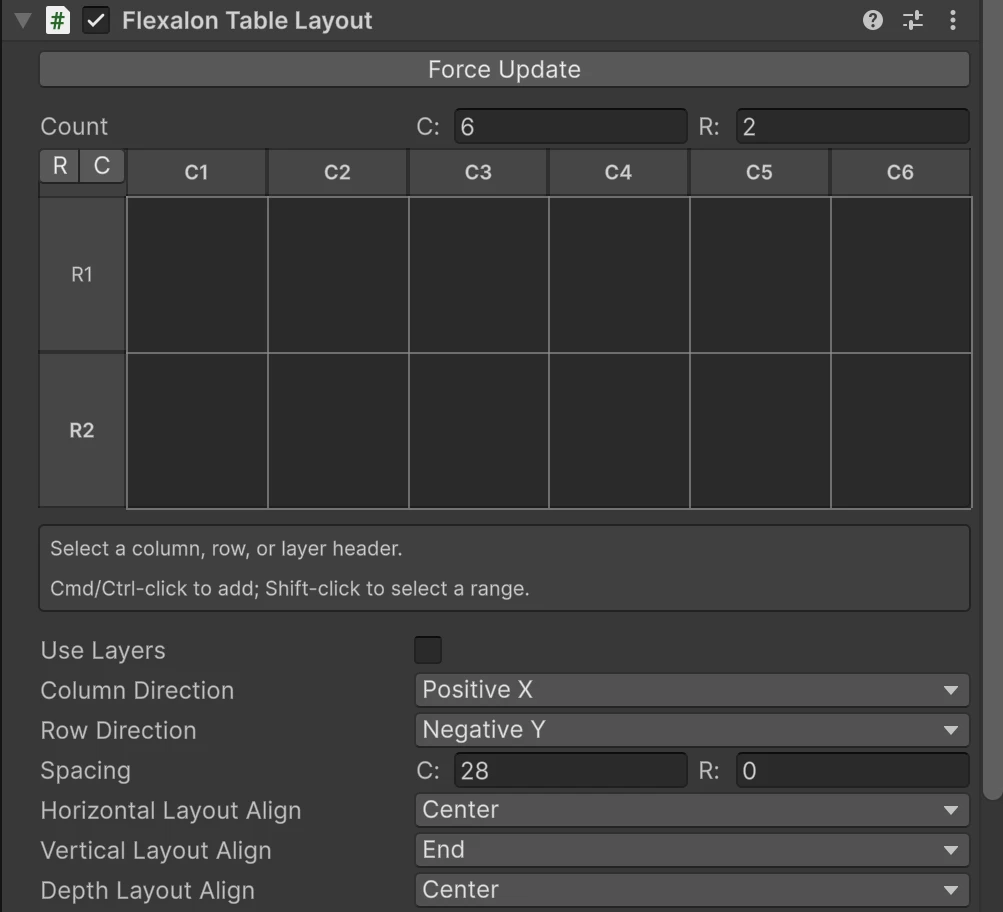
The grid at the top of the inspector shows the table's columns and rows. Click a column or row header to edit that track, Cmd/Ctrl-click to select more than one, or Shift-click to select a range. Click C or R in the corner to edit the Column or Row Defaults. Turn on Use Layers to add a third dimension.
Track sizing
Columns, rows, and layers are each called a track. Each track can fit its content, fill the available space, or use a fixed size:
| Option | Use it for |
|---|---|
| Content | Fit the children in the track, such as a column of labels. |
| Fill | Share available space using a fill factor. Equal factors give equal shares; factors totaling less than one can leave unused space. |
| Fixed | Use Size as the preferred track size, such as an icon column. |
| Minimum | When the table runs out of space, let Content and Fixed tracks shrink, but not below this size. |
| Maximum | Stop the track from growing past this size, even if its content is larger. |
| Direction and Spacing | Choose the direction for each set of tracks, and the space between them. In scripts, spacing is called Gap. |
Fill tracks share the space the table has, so the table needs a size to share. If the table's width is set to Layout, Fill columns only get as wide as their minimum. Give the table a Fixed or Fill width so Fill columns can grow.
Defaults and overrides
Set shared values in the Column, Row, and Layer Defaults, then override only the tracks that differ. New and automatically generated tracks inherit the defaults. Overridden fields and track headers appear bold; right-click to revert an override.
For example, use three columns for an inventory: a Fixed icon column, a Fill name column, and a Content quantity column. Keep row sizing on Content so long item names can wrap.
Alignment
The table's horizontal, vertical, and depth alignment position the entire table within its available size. Column defaults and overrides control child alignment on all three axes. Rows and layers control sizing. A child's Flexalon Object alignment overrides take precedence.
Use Cells and Rows for spans, grouped rows, and cell queries.
Change tracks in code
table.Columns.Count = 3;
table.Columns.Default.SizeType = FlexalonTableLayout.TrackSizeTypes.Fill;
table.Columns[0].Size = 48;
table.Columns[2].SizeType = FlexalonTableLayout.TrackSizeTypes.Content;
table.Columns.Gap = 8;
Changing a single track, like Columns[0], overrides the default for that track only. Call ResetOverrides to go back to the defaults.