A Flexalon Viewport hides the parts of your 3D content that fall outside a box, like a window into a scrolling list. Add Flexalon Clippable to the content you want to cut off at the viewport's edges, and give it a material that supports clipping.
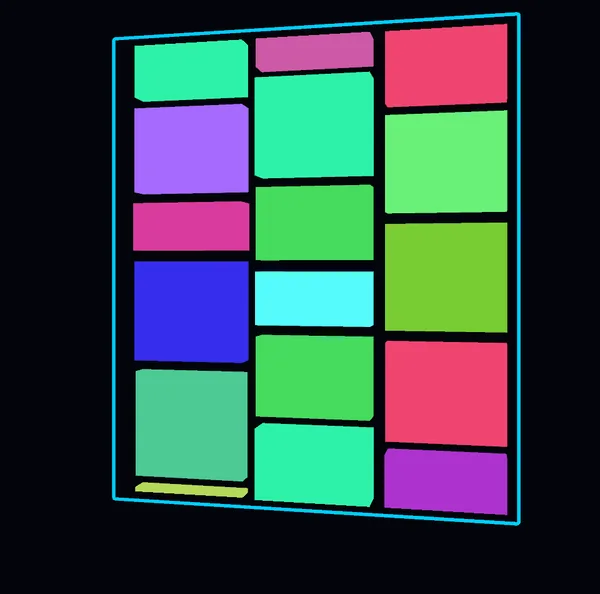
For Unity UI, use Unity's Mask or Rect Mask 2D components instead.
Set up clipping
The quickest way is GameObject > Flexalon > 3D Scroller or Virtualized 3D Scroll List, which create a Flexalon Viewport and add Flexalon Clippable to the content for you. All that's left is to give your items a clipping material. To set one up yourself:
- Create a GameObject for the viewport and add a Flexalon Object. Set its width, height, and depth to the area that should stay visible.
- Add Flexalon Viewport to the same GameObject.
- Add Flexalon Clippable to your content. It clips every renderer on that GameObject and its children. With a Virtualizer, add it to the content or to the item prefab.
- Assign one of the sample clipping materials to your renderers, or use your own shader. See Shaders.
You'll see the clipping in the Scene view right away, without entering play mode.
Flexalon Viewport Options
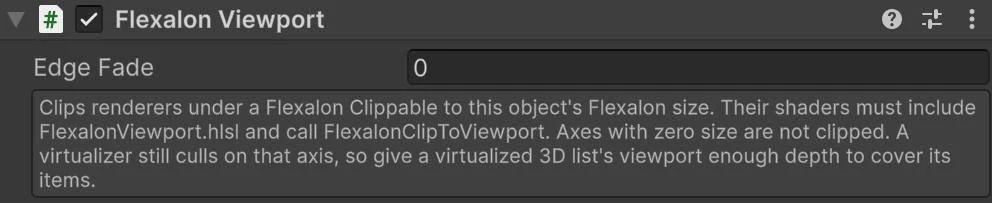
| Edge Fade | Fades content out as it approaches the viewport's edges, instead of cutting it off sharply. Set it to the width of the fade, or 0 for a hard edge. |
Flexalon Clippable Options
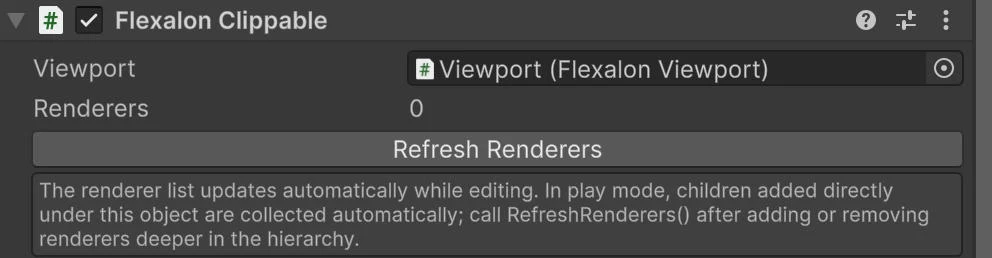
| Viewport | The viewport that clips this content. Leave it empty to use the nearest Flexalon Viewport on this GameObject or one of its parents. Set it when the content isn't a child of the viewport. |
| Renderers | How many renderers are being clipped. |
| Refresh Renderers | Finds the renderers to clip again. You rarely need this; see below. |
Adding objects at runtime
Flexalon Clippable keeps track of the renderers it clips. In the editor, and for objects added directly under it in play mode, this happens automatically. If you add renderers deeper in the hierarchy from a script, call RefreshRenderers() on the Flexalon Clippable afterwards.
Edge Fade
Edge Fade keeps content opaque. Instead of blending, it hides more and more pixels toward the edge, so it works with depth and shadows and needs no transparency sorting. It looks smoothest with temporal anti-aliasing (TAA) turned on. Without TAA, you'll see a speckled pattern.
In XR, where TAA usually isn't available, use MSAA with the URP Lit sample shader and turn on its Edge Fade Alpha To Coverage option.
Shaders
Clipping only works with materials whose shader supports it. The Samples/Shaders directory includes:
- Unlit for built-in, URP, and HDRP: FlexalonViewportStandard, FlexalonViewportURP, and FlexalonViewportHDRP.
- Lit with clipped shadows for built-in and URP: FlexalonViewportLitStandard and FlexalonViewportLitURP.
- Lit Shader Graph for built-in, URP, and HDRP: FlexalonViewportLitGraph, which you can use as a starting point for your own Shader Graphs.
To add clipping to your own hand-written shader, include Shaders/FlexalonViewport.hlsl and call FlexalonClipToViewport in each pass, passing the world position and the screen position:
FlexalonClipToViewport(input.positionWS, input.positionCS.xy);The sample shaders show where the call goes in each render pipeline.
Limits
Up to 63 viewports can clip content at the same time. Moving or resizing a viewport is cheap. On Unity 6.3 or newer with URP or HDRP, clipped renderers still work with the SRP Batcher and the GPU Resident Drawer.
Clipping only hides content. Use a Scroller to move it, and a Virtualizer to create objects only when they're near the viewport.